
Tutorial on Theresa’s Sound World from @StuartMemo. Part 5 – Play a chord! https://andysylvester.com/b/76
TSW Web Audio Primer – Part 5
Well, playing one note at a time is fun for a little while, but it would be nice to play more than one note at a time. In using the Web Audio API, the easiest way to do this is to use a separate oscillator for each note. Let us define some new functions:
playChord
Define notes in chord
For each note in the chord, call PlayNote
playNote
Create an oscillator object, start the note, and push it into an array of oscillators
stopChord
For each entry in the array of oscillators, use the osc.stop function in TSW
First, let’s work on the playChord function. We can use the use the tsw.chord function to get a list of the notes in the chord. Here is a first cut:
[cc lang=”javascript”]
function playChord() {
var testChord;
testChord = tsw.chord(‘A4’, ‘major’);
console.log(testChord);
};
[/cc]
This function will write the contents of the list to the Javascript console. To call this function, we will add a line of HTML to create a new button that will call this function. The button logic in index.html should be changed as follows:
FROM:
[ccie_html]
<p>Press Play to hear how the pitch sounds. <button onclick=”turn_on();”>Play</button></p>
<p>Press Stop to turn it off. <button onclick=”turn_off();”>Stop</button></p>
[/ccie_html]
TO:
[ccie_html]
<p>Press Play to hear how the pitch sounds. <button onclick=”turn_on();”>Play</button></p>
<p>Press Stop to turn it off. <button onclick=”turn_off();”>Stop</button></p>
<p>Test function <button onclick=”playChord();”>Start Chord</button></p>
[/ccie_html]
In Google Chrome, you can see the Javascript console by clicking on the menu button in the upper right corner of the window, then selecting the Tools menu option, then the Javascript Console sub-menu option.
By clicking on the Test button, you should see the following in the console:
[“A”, “C#”, “E”, “A”]
Now, add more logic to test working with the elements of the array:
[cc lang=”javascript”]
function playChord() {
var testChord;
testChord = tsw.chord(‘A4’, ‘major’);
console.log(testChord);
for (i = 0; i < testChord.length; i++) {
console.log(testChord[i]);
}
};
[/cc]
Our result is as follows:
[“A”, “C#”, “E”, “A”]
A
C#
E
A
Now, we can use the tsw.frequency function to get the frequency for the notes in the array.
[cc lang=”javascript]
function playChord() {
var testChord;
testChord = tsw.chord(‘A4’, ‘major’);
console.log(testChord);
for (i = 0; i < testChord.length; i++) {
console.log(testChord[i], tsw.frequency(testChord[i]));
}
};
[/cc]
We then see:
[“A”, “C#”, “E”, “A”]
A 440
C# 277.1826309768721
E 329.6275569128699
A 440
Now, create the playNote function and pass in the frequency of each note. This will look like the turn_on function created earlier, except that the oscillator object will be created in the function rather than be a global variable outside the function.
[cc lang=”javascript”]
function playNote(frequency) {
var osc;
var oscType = ‘sine’;
osc = tsw.oscillator (frequency, oscType);
tsw.connect(osc, volume, tsw.speakers);
osc.start();
}:
[/cc]
In addition, we will now add some logic in playChord to call playNote for the notes in the chord, but will skip the note in the first element in the array, since it is the same as the first note. Update the function as follows:
[cc lang=”javascript”]
function playChord() {
var testChord;
testChord = tsw.chord(‘A4’, ‘major’);
console.log(testChord);
for (i = 0; i < testChord.length; i++) {
console.log(testChord[i], tsw.frequency(testChord[i]));
}
for (i = 1; i < testChord.length; i++) {
playNote(tsw.frequency(testChord[i]));
}
};
[/cc]
After these updates, you should be able to hear the notes in the chord play when you click the Test button. Now, the last part is to be able to turn the notes off.
Since we are creating a new oscillator object for each note, we need to have a way to turn those objects off. We will add logic to push those objects into an array, and then loop through the array to turn them off.
Change the variable declarations as follows:
FROM:
[cc lang=”javascript”]
var testChord;
[/cc]
TO:
[cc lang=”javascript”]
var testChord;
var chordOscillators = [];
[/cc]
Update the function playNote to be as follows:
[cc lang=”javascript”]
function playNote(frequency) {
var osc;
var oscType = ‘sine’;
osc = tsw.oscillator (frequency, oscType);
tsw.connect(osc, volume, tsw.speakers);
osc.start();
chordOscillators.push(osc);
};
[/cc]
Now add the following function:
[cc lang=”javascript”]
function stopChord() {
for (i = 0; i < chordOscillators.length; i++) {
chordOscillators[i].stop();
}
};
[/cc]
In index.html, we will add a new button to call the stopChord function:
FROM:
[ccie_html]
<p>Test function <button onclick=”playChord();”>Start chord</button></p>
[/ccie_html]
TO:
[ccie_html]
<p>Start Chord <button onclick=”playChord();”>Start Chord</button></p>
<p>Stop Chord <button onclick=”stopChord();”>Stop Chord</button></p>
[/ccie_html]
When you press the Start Chord button, you should hear the chord play. When you press the Stop Chord button, the chord will stop!
You can also go to the demo of this application and see if you can play the chord.
Download the source code for all of the examples in this series from Github.
https://andysylvester.com/b/6t
Tutorial on Theresa’s Sound World from @StuartMemo. Part 4 – Add a keyboard! https://andysylvester.com/b/6t
TSW Web Audio Primer – Part 4
Now that you have had some fun with changing a note via a slider, let’s move on to playing a note using a keyboard. Stuart Memo has created a virtual keyboard app called Qwerty Hancock for his site demo, source code at Github. We will modify our app to use this keyboard app to play a note in addition to the Play button.
First, we will make some changes to index.html. We will need to add a <div> element for the keyboard, add a <script> tag for the Qwerty Hancock logic, and move the <script> tag for pitch.js to be below the <script> tag for Qwerty Hancock. In the <head> element, make the following change:
FROM:
[ccie_html]
<script src=”tsw.min.js”></script>
<script src=”https://ajax.googleapis.com/ajax/libs/jquery/1.11.1/jquery.min.js”></script>
<script src=”pitch.js”></script>
<!– Custom styles for this template –>
[/ccie_html]
TO:
[ccie_html]
<script src=”tsw.min.js”></script>
<script src=”https://ajax.googleapis.com/ajax/libs/jquery/1.11.1/jquery.min.js”></script>
<!– Custom styles for this template –>
[/ccie_html]
After the <form> closing tag, add the following:
FROM:
[ccie_html]
</form>
</div>
</div><!– /.container –>
[/ccie_html]
TO:
[ccie_html]
</form>
</div>
<div id=”keyboard”></div>
<script src=”qwerty-hancock.js”></script>
<script src=”pitch.js”></script>
</div><!– /.container –>
[/ccie_html]
In pitch.js, we will add the following new logic at the end of the file:
[cc lang=”javascript”]
var context = new AudioContext();
var settings = {
id: ‘keyboard’,
width: 600,
height: 150,
startNote: ‘A2’,
whiteNotesColour: ‘#fff’,
blackNotesColour: ‘#000’,
borderColour: ‘#000’,
activeColour: ‘yellow’,
octaves: 2
};
var keyboard = new QwertyHancock(settings);
keyboard.keyDown = function (note, frequency) {
turn_on();
changePitch(frequency)
};
keyboard.keyUp = function (note, frequency) {
turn_off();
};
[/cc]
This is logic taken from the Qwerty Hancock demo page. The functions turn_on and turn_off from the earlier examples are being used to start and stop the note and the changePitch function is used to get the frequency for the note corresponding to the key pressed on the keyboard.
Load index.html in your browser and you should see the following:

When you click on any of the keys in the virtual keyboard, you should hear a note. You can still use the radio buttons above to change the oscillator type. You can also use letter keys on the physical keyboard to play notes (“A” through “,” for white keys, “W” through “]” for black keys). If you press more than one key at a time, you will hear a note for each key, but then the notes will not stop when the keys are released. You can refresh the web app to stop the notes.
You can also go to the demo of this application and see if you can change the oscillator type.
Download the source code for all of the examples in this series from Github.
Tutorial on Theresa’s Sound World from @StuartMem…
Tutorial on Theresa’s Sound World from @StuartMemo. Part 3 – Change oscillator type https://andysylvester.com/b/6c
TSW Web Audio Primer – Part 3
In part 2 of this series, you learned how to change the pitch of a note. In this part, you will learn how to change the oscillator type. Add the following HTML logic after the slider logic from Part 2 to set up a form with radio buttons:
FROM:
[ccie_html]
<center><p><input class=”slider-width200″ id=”slider” type=”range” min=”0″ max=”1000″ value=”600″ onchange=”changePitch(this.value)”></p></center>
[/ccie_html]
TO:
[ccie_html]
<center><p><input class=”slider-width200″ id=”slider” type=”range” min=”0″ max=”1000″ value=”600″ onchange=”changePitch(this.value)”></p></center>
<form>
<input type=”radio” name=”oscType” value=”sine” onclick=”getOscType(this.value);” checked>Sine
<input type=”radio” name=”oscType” value=”square” onclick=”getOscType(this.value);”>Square
<input type=”radio” name=”oscType” value=”triangle” onclick=”getOscType(this.value);”>Triangle
<input type=”radio” name=”oscType” value=”sawtooth” onclick=”getOscType(this.value);”>Sawtooth
</form>
[/ccie_html]
Next, we will make several changes to pitch.js. First, add a variable for the type of oscillator:
FROM:
[cc lang=”javascript”]
var osc;
var volume;
[/cc]
TO:
[cc lang=”javascript”]
var osc;
var oscType = ‘sine’;
var volume;
[/cc]
Next, we will change the turn_on function to use the new oscType variable.
FROM:
[cc lang=”javascript”]
function turn_on() {
osc = tsw.oscillator (600, ‘sawtooth’);
tsw.connect(osc, volume, tsw.speakers);
osc.start();
};
[/cc]
TO:
[cc lang=”javascript”]
function turn_on() {
osc = tsw.oscillator (600, oscType);
tsw.connect(osc, volume, tsw.speakers);
osc.start();
};
[/cc]
Finally, we will add a new function as follows:
[cc lang=”javascript”]
function getOscType(value)
{
oscType = value;
osc.type(oscType)
}
[/cc]
This function will be called whenever a new radio button is selected, and will change the oscillator type for the current note being played.
Load index.html in your browser and you should see the following:
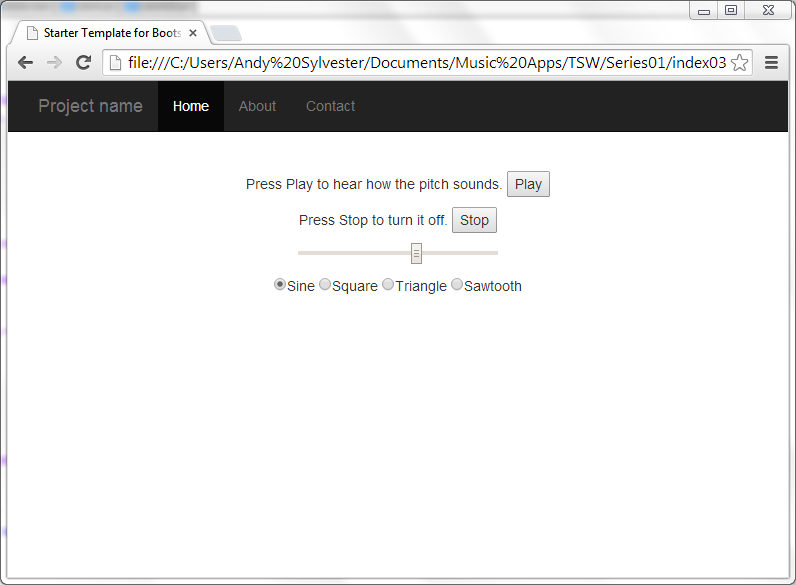
As before, click the Play button to start playing. You can change the pitch using the slider, and when you select a different radio button, the oscillator type will change for the pitch being played.
You can also go to the demo of this application and see if you can change the oscillator type.
Download the source code for all of the examples in this series from Github.
Tutorial on Theresa’s Sound World from @StuartMem…
Tutorial on Theresa’s Sound World from @StuartMemo. Part 2 – Play different pitches https://andysylvester.com/b/6M
TSW Web Audio Primer – Part 2
In part 1 of this series, we played a pitch using the Web Audio API. Let us set up a way to change the pitch of the note. Add this logic to index.html from Part 1 to add a slider element:
FROM:
[ccie_html]
<div class=”starter-template”>
<p>Press Play to hear how the pitch sounds. <button onclick=”turn_on();”>Play</button></p>
<p>Press Stop to turn it off. <button onclick=”turn_off();”>Stop</button></p>
<center><p><input id=”slider” type=”range” min=”0″ max=”1000″ value=”600″ onchange=”changePitch(this.value)”></p></center>
</div>
[/ccie_html]
TO:
[ccie_html]
<div class=”starter-template”>
<p>Press Play to hear how the pitch sounds. <button onclick=”turn_on();”>Play</button></p>
<p>Press Stop to turn it off. <button onclick=”turn_off();”>Stop</button></p>
<center><p><input id=”slider” type=”range” min=”0″ max=”1000″ value=”600″ onchange=”changePitch(this.value)”></p></center>
</div>
[/ccie_html]
Next, create a file (slider.css) and add the following CSS logic to adjust the size of the slider:
[cc lang=”javascript”]
.slider-width200
{
width: 200px !important;
}
[/cc]
The “!important” text is needed to override some default Bootstrap CSS logic.
Finally, in pitch.js, add the following function to be called when the position of the slider changes:
[cc lang=”javascript”]
function changePitch(newValue)
{
osc.frequency(newValue);
};
[/cc]
When you have completed those changes, load index.html to see the following:

Click on the Play button, and you should hear the original pitch. Now move the slider to the right. When you release the slider, you should hear the pitch go up. If you move the slider to the left, the pitch will go down.
You can also go to the demo of this application and see if you can change the pitch.
Download the source code for all of the examples in this series from Github.
References:
WebTUTSDepot: Tutorial for HTML5 sliders
StackOverflow: How to Overwrite Styling In Twitter Bootstrap
New series on using Web Audio API with framework f…
New series on using Web Audio API with framework from @StuartMemo. Part 1 – play a pitch. https://andysylvester.com/b/6A
TSW Web Audio Primer – Part 1
Introduction
This series will demonstrate how to use your web browser to make music! Thanks to the Web Audio API, modern web browsers have the ability to become a synthesizer. With the Javascript library Theresa’s Sound World (TSW) created by Stuart Memo, we can easily use the Web Audio API. Let’s get started!
Part 1 – What makes a sound?
The Web Audio API uses basic elements to create sounds – oscillators and filters. These are much like the early analog synthesizers. On these instruments, knobs and switches would be used to set up the oscillators and filters. In addition, patch cords would be used to connect the oscillators in different ways to make new sounds. We will start with using a single oscillator.
TSW provides an oscillator method which you can use to create a new oscillator node as follows:
[cc lang=”javascript”]
var osc = tsw.oscillator (frequency, wave_type)
[/cc]
The frequency represents the frequency of the pitch to be played. The wave type is a text string and can be one of four values (‘sine’, ‘square’, triangle’, ‘sawtooth’). If no parameters are entered, the default is a 400 Hz sine wave oscillator. Here are some examples:
[cc lang=”javascript”]
var osc = tsw.oscillator (600, ‘sawtooth’); // Creates a 600 Hz sawtooth wave
var osc = tsw.oscillator (800, ‘sine’); // Creates a 800 Hz sine wave
var osc = tsw.oscillator (1200, ‘square’); // Creates a 1200 Hz square wave
var osc = tsw.oscillator (550, ‘triangle’); // Creates a 550 Hz triangle wave
[/cc]
A table of pitch to frequency mappings can be found at http://peabody.sapp.org/class/st2/lab/notehz/.
We can change the volume of the tone we will create by using a gain node:
[cc lang=”javascript”]
var volume;
volume = tsw.gain(0.25); // Set volume to 0.25 of normal
[/cc]
Once the oscillator node is created, the node needs to be connected to the final output node, called “speakers”. This is done using the connect method as follows:
[cc lang=”javascript”]
tsw.connect (osc, tsw.speakers);
[/cc]
Finally, the note is started by calling the start method of the oscillator node object:
[cc lang=”javascript”]
osc.start();
[/cc]
To stop the note, call the stop method for the oscillator:
[cc lang=”javascript”]
osc.stop();
[/cc]
Let’s put this data and two functions (turn_on and turn_off) together in a file which can then be loaded from a web page (save as pitch.js):
[cc lang=”javascript”]
var osc;
var volume;
volume = tsw.gain(0.5);
function turn_on() {
osc = tsw.oscillator (600, ‘sawtooth’);
tsw.connect(osc, volume, tsw.speakers);
osc.start();
};
function turn_off() {
osc.stop();
};
[/cc]
Note that the oscillator is defined in the function turn_on instead of when the parameter osc is declared. There is a reason for setting up the oscillator this way. In the Web Audio API, once an oscillator is turned off or disconnected, it can no longer be used. If the oscillator was defined when the parameter osc was declared, it could not be started again if the user turns the oscillator on and off. With this design, a new oscillator instance will be created each time that the turn_on function is called.
Now we will use the Bootstrap user interface toolkit to create our application. We will use the starter-template file from the Bootstrap examples site. In the <head> element, make the following changes:
FROM:
[ccie_html]
<!– Bootstrap core CSS –>
<link href=”../../dist/css/bootstrap.min.css” rel=”stylesheet”>
[/ccie_html]
TO:
[ccie_html]
<!– Bootstrap core CSS –>
<link href=”http://maxcdn.bootstrapcdn.com/bootstrap/3.2.0/css/bootstrap.min.css” rel=”stylesheet”>
<script src=”tsw.min.js”></script>
<script src=”https://ajax.googleapis.com/ajax/libs/jquery/1.11.1/jquery.min.js”></script>
<script src=”pitch.js”></script>
[/ccie_html]
Remove the following HTML from the <head> element:
[ccie_html]
<link rel=”icon” href=”../../favicon.ico”>
<!– Just for debugging purposes. Don’t actually copy these 2 lines! –>
<!–[if lt IE 9]><script src=”../../assets/js/ie8-responsive-file-warning.js”></script><![endif]–>
<script src=”../../assets/js/ie-emulation-modes-warning.js”></script>
<!– IE10 viewport hack for Surface/desktop Windows 8 bug –>
<script src=”../../assets/js/ie10-viewport-bug-workaround.js”></script>
<!– HTML5 shim and Respond.js IE8 support of HTML5 elements and media queries –>
<!–[if lt IE 9]>
<script src=”https://oss.maxcdn.com/html5shiv/3.7.2/html5shiv.min.js”></script>
<script src=”https://oss.maxcdn.com/respond/1.4.2/respond.min.js”></script>
<![endif]–>
[/ccie_html]
Now replace the HTML within the <body> element in the div with with the following HTML to set up the buttons to call the two functions in pitch.js:
FROM:
[ccie_html]
<div>
<div>
<h1>Bootstrap starter template</h1>
<p class=”lead”>Use this document as a way to quickly start any new project.<br> All you get is this text and a mostly barebones HTML document.</p>
</div>
</div><!– /.container –>
[/ccie_html]
TO:
[ccie_html]
<div>
<div>
<p>Press Play to hear how the pitch sounds. <button onclick=”turn_on();”>Play</button></p>
<p>Press Stop to turn it off. <button onclick=”turn_off();”>Stop</button></p>
</div>
</div><!– /.container –>
[/ccie_html]
Finally, replace the links at the bottom of index.html with the following:
FROM:
[ccie_html]
<!– Bootstrap core JavaScript
================================================== –>
<!– Placed at the end of the document so the pages load faster –>
<script src=”https://ajax.googleapis.com/ajax/libs/jquery/1.11.1/jquery.min.js”></script>
<script src=”../../dist/js/bootstrap.min.js”></script>
[/ccie_html]
TO:
[ccie_html]
<!– Bootstrap core JavaScript
================================================== –>
<!– Placed at the end of the document so the pages load faster –>
<script src=”http://maxcdn.bootstrapcdn.com/bootstrap/3.2.0/js/bootstrap.min.js”></script>
[/ccie_html]
Load up the HTML file index.html in your browser (the file does not have to be uploaded to a web server). You should see the following:

Click on the Play button, and you should hear the pitch. To turn off the pitch, click the Stop button.
You did it! You are making sounds in your browser using the Web Audio API. If you do not hear anything, check the HTML5Test website to see if your browser supports the Web Audio API. You can also go to the demo of this application and see if you can use that to hear the pitch.
Download the source code for all of the examples in this series from Github.