
Today is the one year anniversary of the January 6th insurrection at the US Capitol. I created a liveblog of the events of that day, click this link to see the OPML in Little Outliner. The original post is here, and another rendering of the liveblog showing all entries expanded is here.
Blogging
There are 133 posts filed in Blogging (this is page 10 of 14).
Over on my Old School blog, I wrote a post about the Old School Drummers News River app, check it out if you are interested in how these apps work.
via Chris Aldrich – I liked this list, will try to apply this myself
Getting started again with rssCloud
Andrew Shell contacted me recently to mention that he has his rssCloud server online – nice! rssCloud uses the <cloud> element in RSS 2.0 to connect a loosely-coupled Twitter-like network of people and 140-character status messages. I went through my archives (looks like I last looked at this in 2015 and 2016) and notes, and found that I had a copy of a script (Github Gist link) Dave Winer wrote as a test app in 2015. I uploaded it to my current server, modified it to point to my current domain, and found that it was able to register with the rssCloud server and get updates on the feed listed in the test app – excellent! I plan to review the rssCloud Walkthrough document to guide my next steps.
Resources:
https://gist.github.com/scripting/dbb07695736de85b3882 – Dave Winer test app for Andrew Shell server
https://blog.andrewshell.org/2020-02/18/updating-rsscloud-server/ – Update on rssCloud server
http://rpc.rsscloud.io:5337/ – Running instance of server
https://blog.josephscott.org/2009/09/07/rsscloud-for-wordpress/ – Info on rssCloud plugin for WordPress
https://wordpress.org/plugins/rsscloud/ – Current plugin page for rssCloud WordPress plugin
https://plugins.svn.wordpress.org/rsscloud/ – Current SVN repo for rssCloud WordPress plugin
http://home.rsscloud.co/ – New home page for rssCloud info
http://walkthrough.rsscloud.co/ – Implementers Guide to rssCloud
https://github.com/rsscloud/rsscloud-server – rssCloud server source code by Andrew Shell
https://andysylvester.com/2015/11/22/learning-something-new-can-be-hard/ – My 2015 post on rssCloud work
http://notes.andysylvester.com/2016/08/07/exploringRsscloudAndPubsubhubbub.html – My 2016 post on rssCloud work
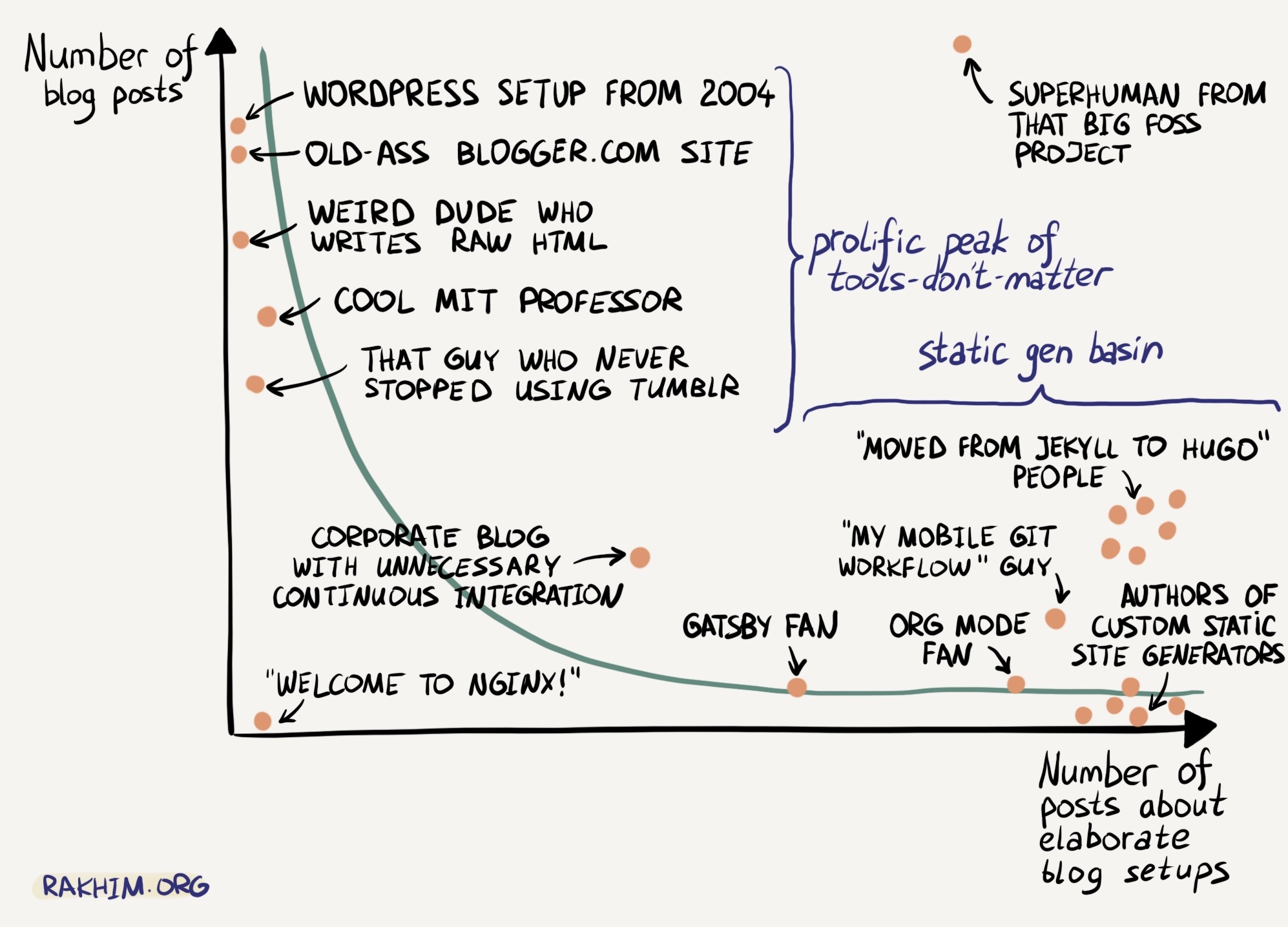
I am a WordPress user, but not as prolific as I would like from this diagram. I do think the “static gen basin” is totally accurate! Had a hard time stopping laughing…
Source: Rakhim.org
nodeStorage: Feedback on new migration changes (affects 1999.io)
I wrote a post recently about a 1999.io server that I set up for a friend. That post documented a problem that happened when I initially set up the server. A few weeks ago, he wrote me to say that he was getting 502 Bad Gateway when he tried to access his site. After some review, it appeared that the 502 Bad Gateway was due to the fact that the server process had stopped for some reason. I went to restart the server, but got an error immediately:
Cannot find module ./main.js
After some more review, I saw that the nodeStorage repo had been updated in October (https://github.com/scripting/nodeStorage). This is the backend of the 1999.io blogging tool. I remembered that in the past, some of these apps would try to update themselves periodically. From looking at the installation directory, this appeared to be the case. The update was to create a NPM package for nodeStorage (it appears this was to help with making future updates easier). I agree that the manner of updating 1999.io in the past has been somewhat awkward, so I hope this will improve the environment for future updates. However, I wanted to get my friend’s server working again, so I started trying to figure out how to fix things as quickly as I could.
The description for the new update process (https://github.com/scripting/nodeStorage/blob/master/package.md) had the following steps:
- Download the package.
- The code you need is in the example folder. Copy the two files into your app’s folder.
- Edit app.js to the name of your app, and update package.json accordingly.
- You can delete the other files.
- At the command line, enter npm install.
- You still have to have a config.json file as before.
I began to work through these steps, here are my notes:
- Download the package.
Since I did not think my install was ready to do the ‘npm update’ type solution (future state), I instead downloaded a Zip file of the current nodeStorage repo (https://github.com/scripting/nodeStorage/archive/master.zip) and unzipped the file.
2. The code you need is in the example folder. Copy the two files into your app’s folder.
I reviewed the unzipped file and saw that there was a folder called “example” and it contained two files (app.js and package.json). I copied these files into my existing nodeStorage directory.
3. Edit app.js to the name of your app, and update package.json accordingly.
I decided that I wanted to keep the storage.js app the same, so I changed the app name in app.js from “nodestorage” to “storage” (which corresponds to storage.js). I decided to keep the current package.json for now.
4. You can delete the other files.
I decided to delete the npm_modules directory within the nodeStorage directory (due to step 5)
5. At the command line, enter npm install.
I executed this command from the nodeStorage directory
6. You still have to have a config.json file as before.
I had a config.json file, so left it as is.
I then started the server using the command “node storage.js”, and the server appeared to come up correctly. I then stopped it and started again using the command “forever start -a storage.js”
I then repeated this operation with a second 1999.io install, except that I left app.js and package.json from the example folder as-is. I then used the command “node app.js” and saw the server come up correctly. Finally, I stopped it and started again using the command “forever start -a app.js”, with everything working normally.
Conclusions/suggestions:
- Recommend changing step 1 to say “getting the nodeStorage repo Zip file” rather than “Download the package”, as this gives the impression that you are supposed to issue some NPM command right at the start.
- Be more specific about what files could/should be deleted in step 4. I deleted the node_modules directory, but perhaps other files could be deleted as well.
1999.io: How to make sure posts get into the RSS feed
Recently, I helped a friend (Ron Chester) set up a 1999.io instance for a blog on ham radio. In his initial posts, however, he did not see the posts appear in the RSS feed for the site. I did some debugging (will go through that in a post some other time) and found that the problem was due to a setting within 1999.io. There was a reference on the 1999 blog for Facebook Instant Article support, saying that the checkbox needed to be checked for IA support.
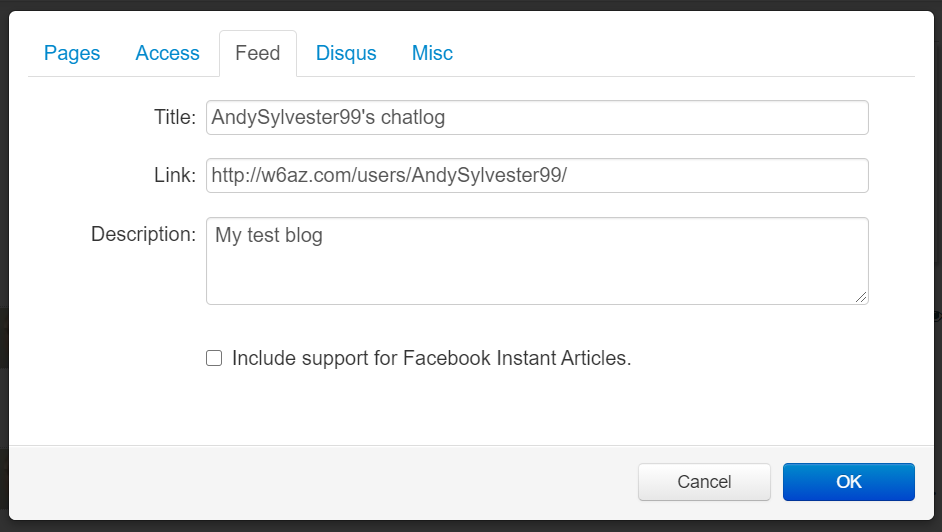
In the default install, this box was checked. As a result, if a user posted something without a title, it would not appear in the RSS feed (the 1999 blog post linked above states this). To make sure that all posts (with or without titles) appear in the RSS feed, this box should be unchecked, as shown in the above picture.
Choosing a mailing list tool for WordPress besides MailChimp
I started a news site for covering the protests in Portland (https://portlandprotestnews.com/), and I wanted to offer a way for people to subscribe to an email newsletter containing the daily posts. My first thought was to set up a MailChimp newsletter, since I already had one set up for another site (https://OrgModeForBeginners.com). However, I quickly realized the first limitation of a free account on MailChimp – only one mailing list allowed – darn! I was not interested in starting to pay $10/month to MailChimp, and it would only bump up to 3 mailing lists. So, I started looking for other free alternatives.
My first step was to find another service like MailChimp. After a little searching, I decided to try out Sendinblue (https://www.sendinblue.com/). However, the email it sent out was not impressive (I selected a RSS publish, and it did not show any links except to the main posts), and the subscription form had some problems in sizing, so I resumed my search.
My next experiment was to look at the mailing list feature provided by my web hosting service (based on GNU Mailman (https://list.org/)). I spent about 4 hours over 2 days poring through setup instructions and managed to get a mailing list set up that seemed to work the way I wanted. I then needed to create a signup form, and tried using WPForms (https://wpforms.com/), which was available as a free plugin within my WordPress install. I got a form set up, but then had problems getting the form to send an email to the email address for the mailing list to add a new subscriber. At that point, I decided to try another tack – looking for a WordPress plugin that could handle everything.
The first plugin I tried was WP-Subscribe (https://wordpress.org/plugins/wp-subscribe/), but it only worked with MailChimp, Aweber, and Feedburner (could not use any other email delivery provider, I was thinking I could reuse the Mailman list I set up, but no go). The grand prize winner was The Newsletter Plugin (https://www.thenewsletterplugin.com/), which had a free version that supported signing up subscribers, creating a newsletter, and sending it out to the list. After about an hour of testing, I sent out my first newsletter, and it looked good! I ended up deciding to copy the text from the daily weblog post to the HTML email newsletter form, and adding custom embed code for Twitter posts.
Overall, I learned a lot about setting up mailing lists and figuring out what I wanted from a mailing list tool. My top features were price and ease of use. If I could have created another MailChimp list, I would have done it in a second (since I had an account). Since I did not want to spend anything just yet on a new mailing list provider, ease of use was the next criteria. It was a shame that it took the better part of two days to weed through the contenders, but I think I found a solution that will at least get me started.
I like hearing from other bloggers about why they blog…
This blog post is dedicated to why you should have your own (independent) blog.
Nice article by Stephen Downes on his blogging process…